
 Alizabeth Swain
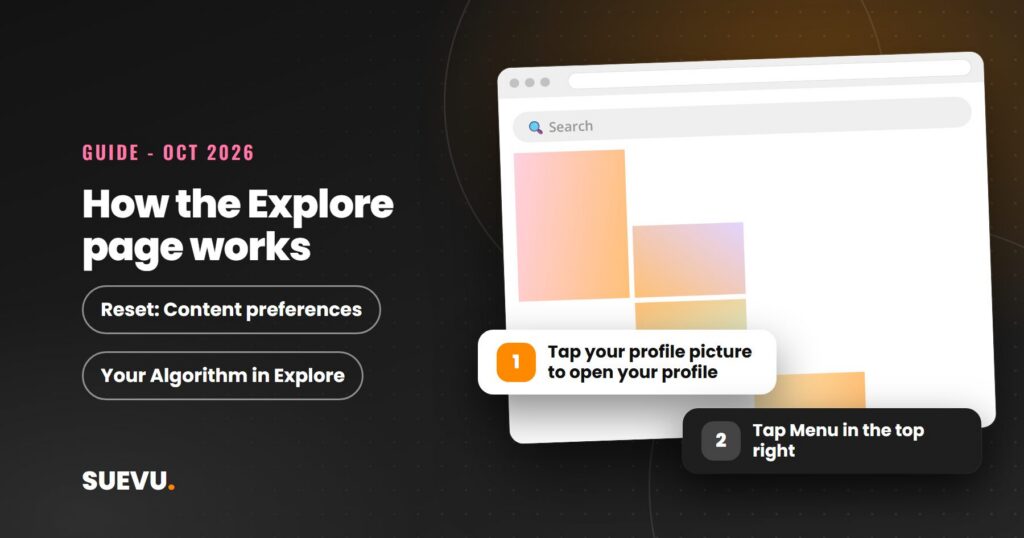
The Instagram Explore page is the tab where Instagram shows you posts and Reels from accounts you do not follow. This guide explains how it works using Instagram’s own pages, read on 21 October 2026, including how to steer it, how to reset it, and what creators can and cannot do to appear on it.
Instagram does not publish a recipe for getting onto anyone’s Explore page, and no outside tool can guarantee it. What it does publish is a set of recommendation guidelines and some user controls, and those are what this page is built on. For dated product changes, see our Instagram updates overview.
Quick answer: Explore is personalized, so each person sees something different. As a viewer, you can tap Not interested, adjust your topics in Your Algorithm, or reset your suggested content (Profile, Menu, Content preferences, Reset suggested content). As a creator, you can make sure your account is eligible to be recommended, but Instagram says eligibility does not guarantee you will be recommended.
Status: current as of 21 October 2026. Cost: free. Risk: buying likes or using growth apps can make an account ineligible for recommendations.
What the Explore page is
According to Instagram’s Help Center, Search and Explore shows recommendations such as photos and Reels to help you discover new things from accounts you do not follow. You reach it by tapping Explore at the bottom of the app. Instagram says the recommendations may be relevant to your interests or similar to content you previously interacted with.
Explore is one of several places where Instagram recommends content. Instagram’s page on recommendations names Explore, Reels, Accounts You May Like and Feed as examples.
How Explore picks posts
Instagram’s Help Center says posts in Search and Explore are selected automatically based on a variety of factors, and names three:
- the Instagram accounts you follow,
- photos and videos you have liked on Instagram,
- your connections on Instagram.
On the personalization side, Instagram’s recommendations page gives an example: if you interact with restaurants and bookstores, it may recommend content about food, recipes, books or reading. Instagram says it personalizes recommendations, meaning it makes unique recommendations for each person. For how an AI system selects, ranks and delivers Explore content, the Help Center points to Meta’s Transparency Center, which holds the detailed technical description.
What Instagram does not publish is a ranking formula with weights. Older articles, including our own earlier version of this page, listed exact ranking tricks such as posting times and reply speed. Instagram’s pages do not confirm those, so they are not repeated here. For a wider look at what Instagram says about ranking, see our guide to the Instagram algorithm.
Your Algorithm: control your topics
In December 2025 Instagram introduced Your Algorithm. Updates on the same post say it extended to Explore on 15 April 2026, and on 10 June 2026 Instagram said it is live across Feed, Reels and Explore. Instagram describes it as one system, so topics you change in one place update the others.
- Open Explore (or Reels).
- Tap the icon in the upper right corner, shown as two lines with hearts.
- Read the AI-generated summary of topics Instagram thinks are shaping your recommendations.
- Tell it what you want more or less of, or add topics.
On Explore, the post adds that you can add or remove interests from the topic pills at the top of the page. Instagram describes the feature as available globally in English. Menu icons change, so if you cannot see it, check the announcement and update your app.
Steps for viewers: fewer posts you do not want
The Help Center says that if you see a post you are not interested in on your feed or in Reels, Explore or Search, you can choose to see fewer like it. Tap Options on the post, then Not Interested. You can also tap and hold a post in Explore, then tap Not interested. If a post breaks the Community Standards, you can choose Report instead. Instagram says reports are anonymous, apart from intellectual property reports.
Doing this repeatedly is one practical way to shape your Explore page. Instagram does not say how quickly the system reacts, so we cannot give you a timeline. More practical walkthroughs are in our Instagram tips section.
How to reset suggested content
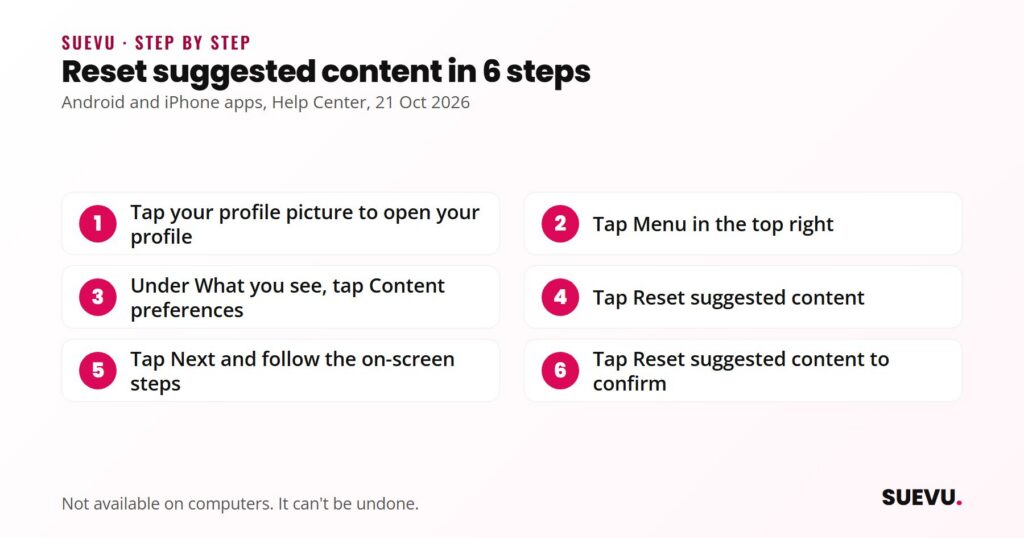
Instagram’s Help Center has a page for resetting your suggested content on the Android and iPhone apps. It says the feature is not available on computers. The steps it gives:
- Tap your profile picture in the bottom right to open your profile.
- Tap Menu in the top right.
- Under “What you see”, tap Content preferences.
- Tap Reset suggested content.
- Tap Next and follow the instructions on screen. You can review who you follow and your ads topics first.
- Tap Reset suggested content to confirm.
According to the page, a reset does not change who you follow or the ads you see, and it does not delete your data. It “can’t be undone”, but suggestions become more personalized again as you like, share and engage. Instagram says your data is still used to personalize your experience in other ways. If you only want to adjust a few topics, Your Algorithm above may be gentler than a full reset.
Creators: what makes content eligible
Instagram says its Recommendations Guidelines decide which content from public accounts is eligible to be recommended in places like Explore, Reels and Feed. The recommendations page says these guidelines hold content to a higher standard than the Community Standards, because the audience did not choose to follow you. The guidelines also only apply to public accounts and to recommendations to people who do not follow you. Your content can still reach followers if you are not eligible.
The page lists content that may not be eligible, including content that is low-quality, for example unoriginal content largely repurposed from another source with only minor edits, long captions unrelated to the content, and coordinated comment networks meant to artificially drive engagement. It also lists categories such as false or misleading content and some sensitive content that is allowed on Instagram but not recommended. Read the full list rather than relying on a summary.
For accounts, Instagram says it tries not to recommend accounts that recently violated its Community Guidelines or that repeatedly engaged in misleading practices to build followings, such as purchasing likes.
Creators: sensible steps
- Check eligibility. If you use a professional account, Instagram’s recommendation eligibility page says Account Status shows whether your content may be eligible to be recommended and flags content that goes against the guidelines. It adds that you may be able to request a review.
- Post original work. Unoriginal, lightly edited reposts are one named reason content may not be recommended.
- Keep captions relevant. The guidelines name long captions unrelated to the content as a quality problem. Our guide to writing Instagram captions covers the basics, and our hashtag guide explains why hashtags may not be working.
- Do not buy engagement. Purchased likes are a named example of misleading practices.
- Read your Insights. The eligibility page points to Instagram Insights for content performance. Our guides on increasing engagement and how often to post give general advice, which is not an Explore guarantee.
What it costs
Nothing. Explore, the Not interested control, Your Algorithm and the reset are built into Instagram and the pages we read mention no fee. Paid “Explore page” services do exist, but Instagram does not describe any paid way to be recommended.
Safety and risks
- Buying engagement. Instagram lists purchased likes as an example of misleading practices that can stop an account being recommended.
- Growth and automation apps. Instagram said in 2018 that third-party apps that generate inauthentic likes, follows and comments violate its Community Guidelines and Terms of Use. Never share your Instagram password with a service that promises Explore placement.
- Reset is permanent. Instagram says resetting suggested content cannot be undone. That is low-stakes for most people but worth knowing before you tap it.
- Related account risks. If your account has been compromised, see our guide on recovering a hacked account.
What you can and cannot control
| You can | You cannot |
|---|---|
| Tell Instagram to show fewer posts like one you dislike | See the exact ranking formula |
| Adjust topics in Your Algorithm | Make Instagram recommend a given post |
| Reset suggested content (phone apps) | Undo a reset afterwards |
| Check Account Status on a professional account | Turn eligibility into a guarantee of reach |
Who this suits
- Viewers bored by their Explore page: Your Algorithm and Not interested are the light-touch route; Reset suggested content is the strong one.
- Small creators: focus on original work and eligibility. Explore is one of several surfaces, and Instagram says recommendations also appear in Reels and Feed.
- Brands and businesses: use a professional account to see Account Status, and avoid shortcuts that could make the whole account ineligible.
Related guides
Reach does not depend on Explore alone. Hashtags are one part of how posts are understood; see our guide to finding trending hashtags.
Also useful: how to delete an Instagram account.
Explore page FAQ
How does the Instagram Explore page work?
It shows recommendations from accounts you do not follow, selected automatically using factors such as the accounts you follow, posts you have liked and your connections, per Instagram’s Help Center.
How do I get on the Explore page?
You cannot force it. You can make sure your account and content are eligible under Instagram’s Recommendations Guidelines, but Instagram says eligibility does not guarantee you will be recommended.
How do I reset my Explore page?
On the phone apps: Profile, Menu, Content preferences, Reset suggested content, then follow the steps. The Help Center says this is not available on computers and cannot be undone.
Why is my Explore page full of things I do not like?
Explore is based on your activity and connections. Use Not interested on posts you do not want, and adjust topics in Your Algorithm.
Does a reset delete my data or unfollow people?
Instagram says no: it does not change who you follow or the ads you see and does not delete your data.
Do hashtags or posting times get you onto Explore?
Instagram’s pages we read do not say so. Treat claims about secret Explore tricks with caution.
If a step here no longer matches your app, tell us on the contact page, as described in our editorial policy.